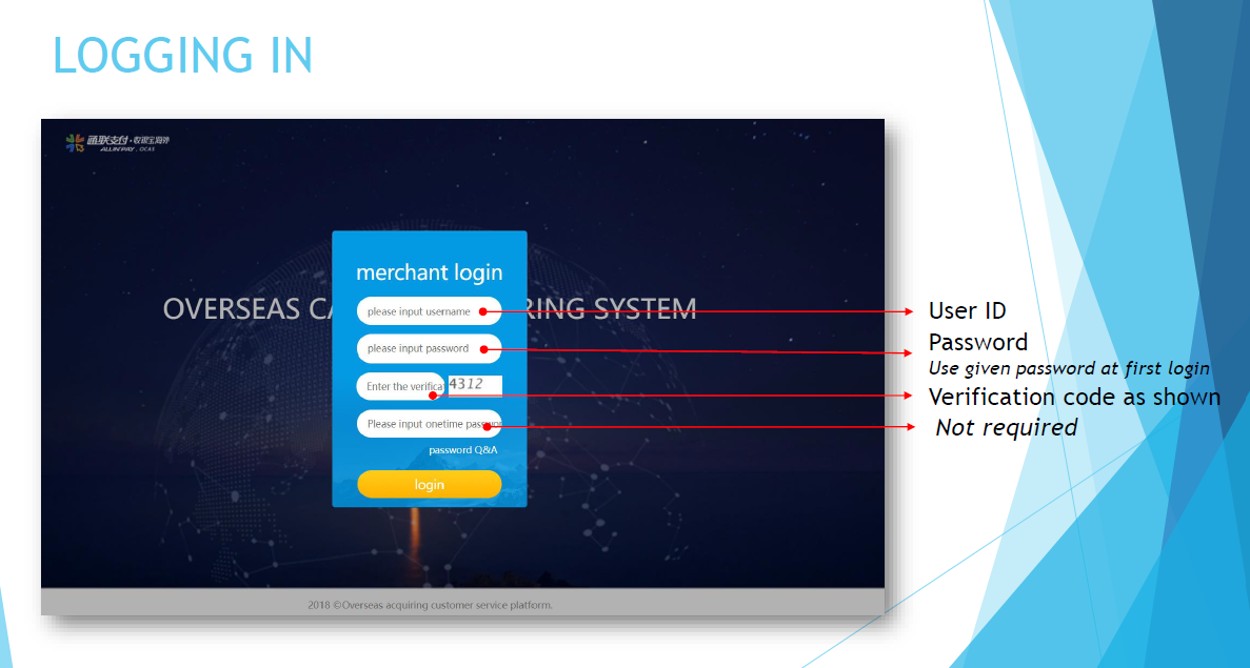
Upon account opening, we will send you an email with the login details. If you have not received any, please send us an email to cs@allinpay.sg with your business name and UEN number.Kindly note that we will process requests sent from authorised email address registered in the account.
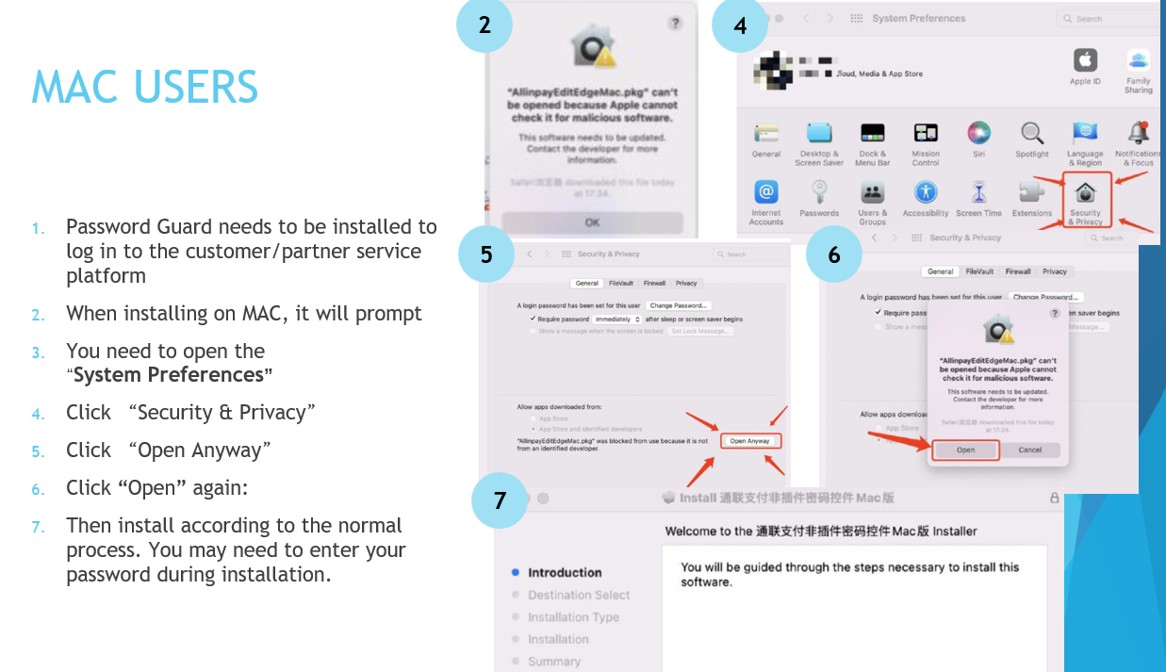
I am using a Macbook and having difficulties logging in / Having problems with Password Guard
Please note the preferred browser on MAC is Safari.
We regret to inform you that we currently do not allow change of username or login name at the moment.
I downloaded the Password Guard but it is still showing “Click to Download”
After download, please close all browsers and reopen the page in a new browser. The field should appear empty for you to key in the password. If it still shows the same, please click to download again, giving all permissions (Yes to popups) for the password guard to run.
Please also note that some desktops or laptops may require you to restart before the download can run normally.
What browsers are compatible?
On windows , Chrome is recommended. You may also use Internet Explorer and Opera.
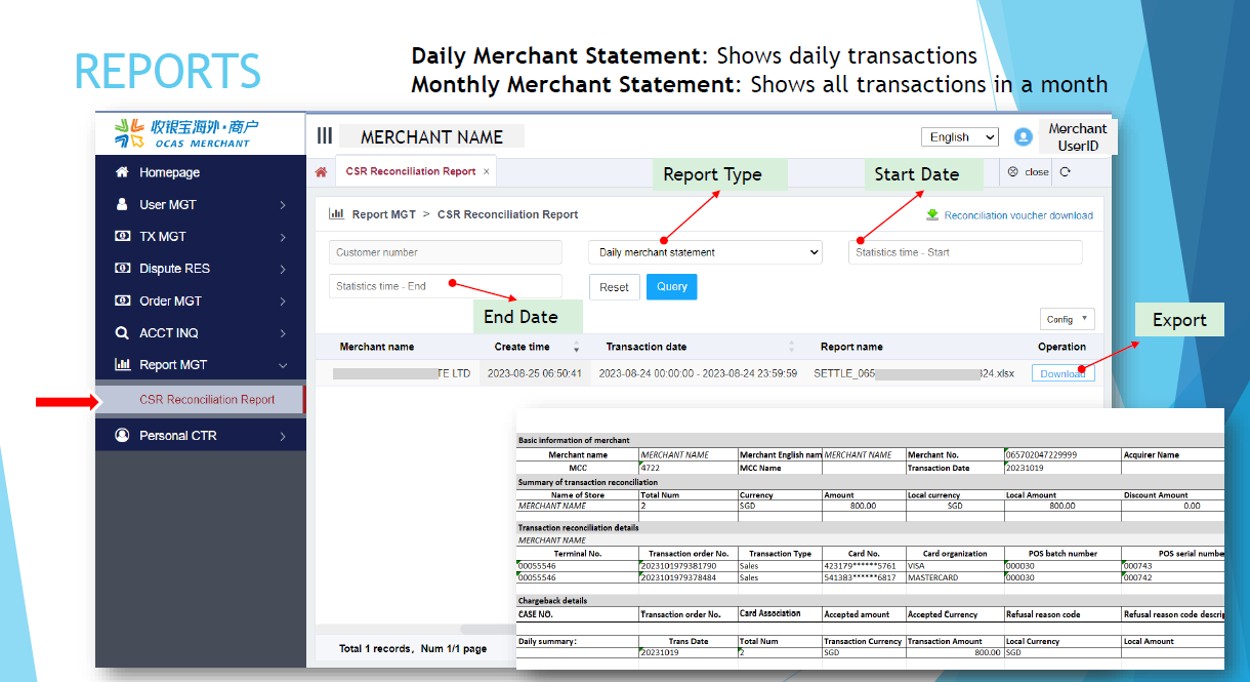
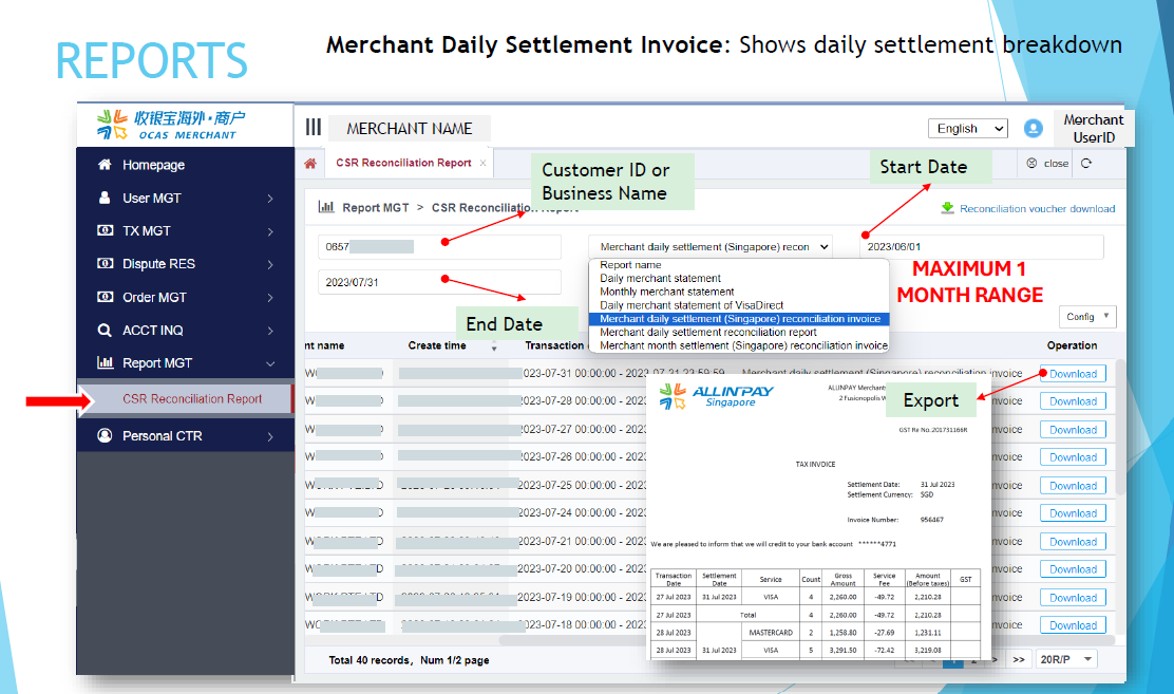
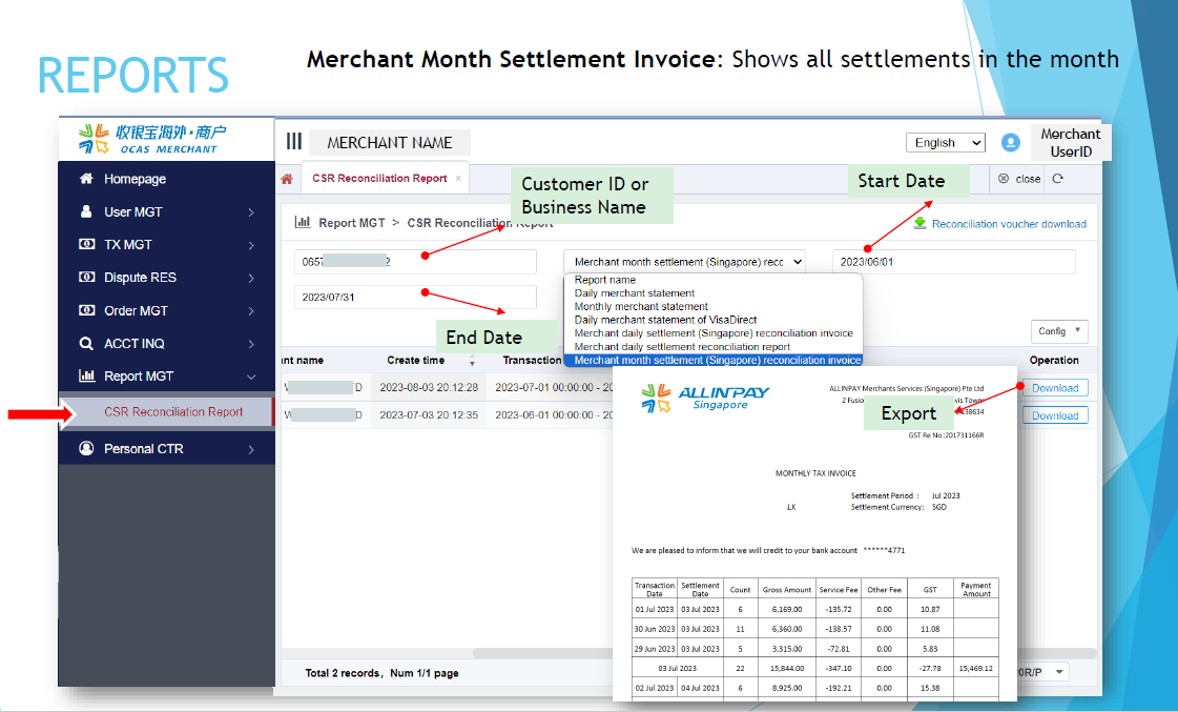
For monthly invoices, please select Report MGT> CSR Reconciliation > Select report “Merchant month settlement (Singapore) reconciliation invoice” > Enter date
How do I reset my password?
Please send us your request to cs@allinpay.sg with your business name and UEN number. Kindly note that we will process requests sent from authorised email address registered in the account.
Change of Business Information
How do I change my business address?
You will need to sign a change request form (signed by authorised person) and submit an updated ACRA profile. Please contact us cs@allinpay.sg.
Connection
I am unable to connect to the terminal online
Please make sure the connectivity signal (WIFI or 4G) appear on the top right of the terminal.
I tried connect to WIFI but still no connectivity
Make sure that your network has no firewall
Check that your router is working fine. Try to restart your router and connect to the terminal to the network
If problem persists, try connect to mobile hotspot if is possible
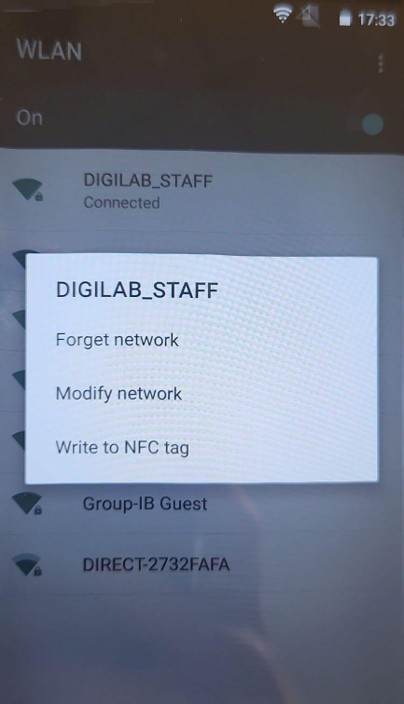
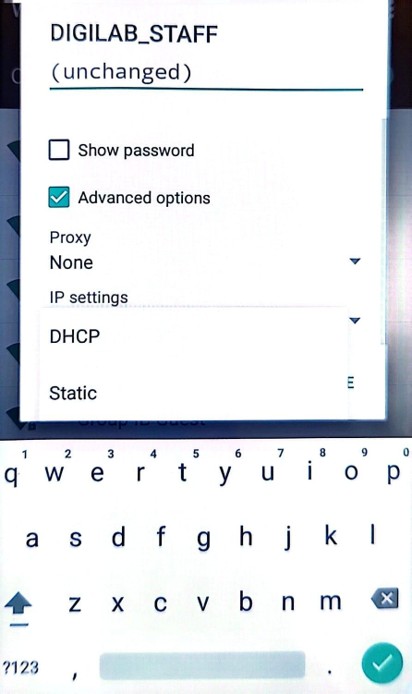
How to change IP to static
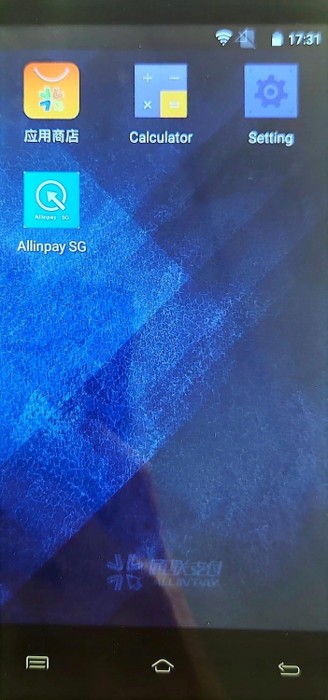
On the device home screen (do not go into Allinpay app), select SETTINGS
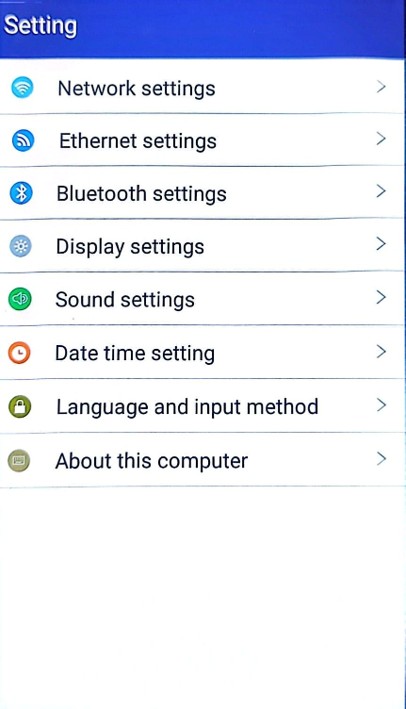
Select NETWORK SETTINGS
Select WIFI
Press and hold on the network you are connected to, then select MODIFY NETWORK
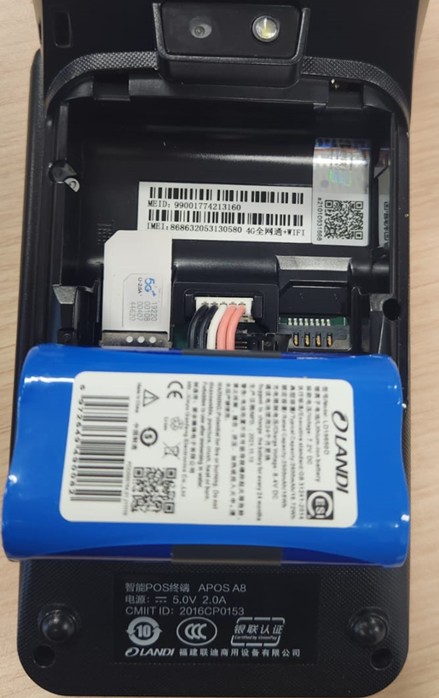
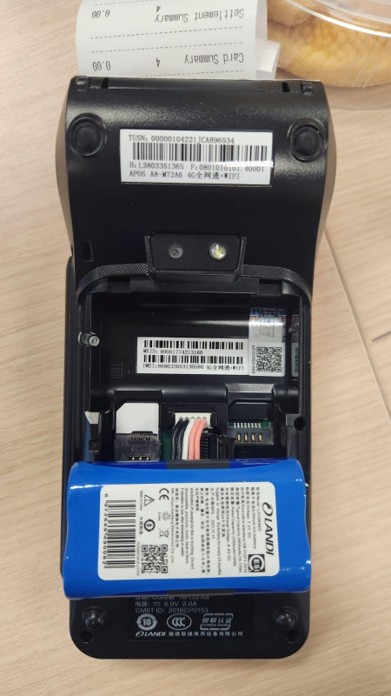
The SIM card slot is at the back of the terminal, under the battery rest.
Remove the back cover
Lift the battery (do not need to unplug)
Please note only Standard SIM Card size is allowed (you will need SIM Card adaptor for smaller card sizes)
Slot in with chip facing down
How to change Screen Out / Screen Saver / Time Out
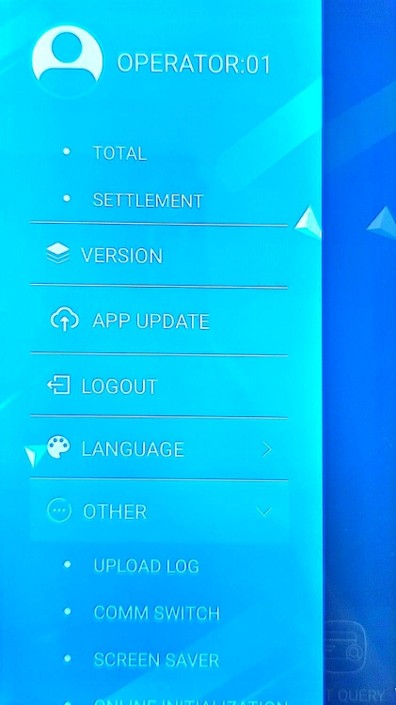
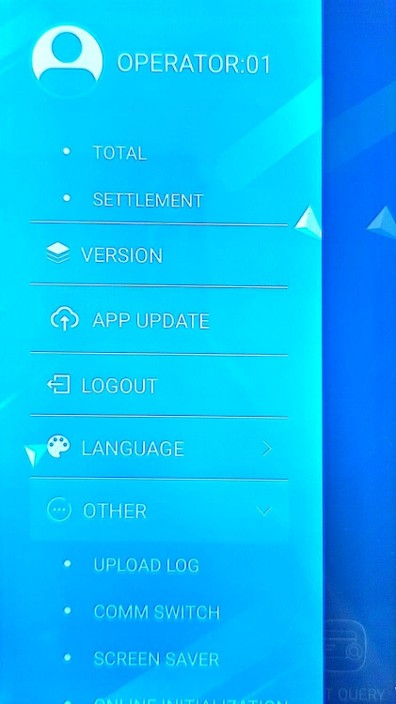
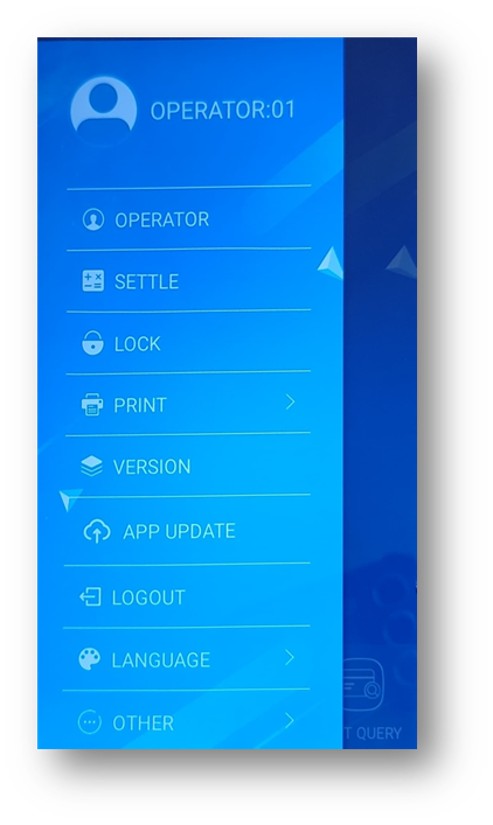
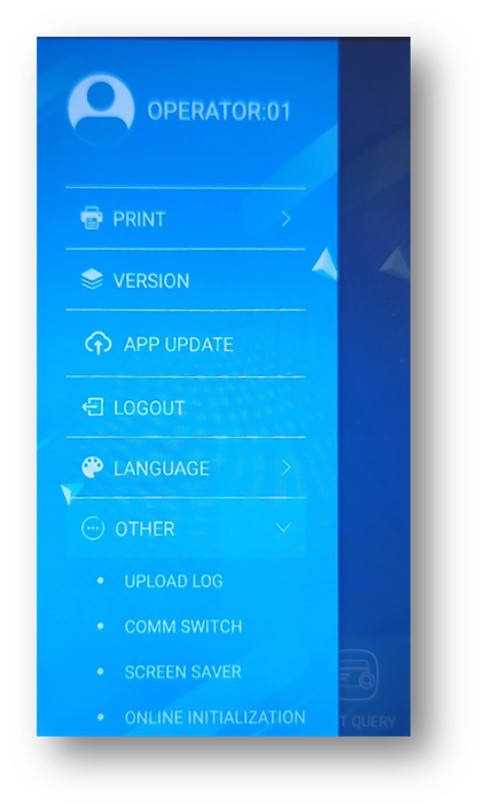
Open MENU at the top left corner
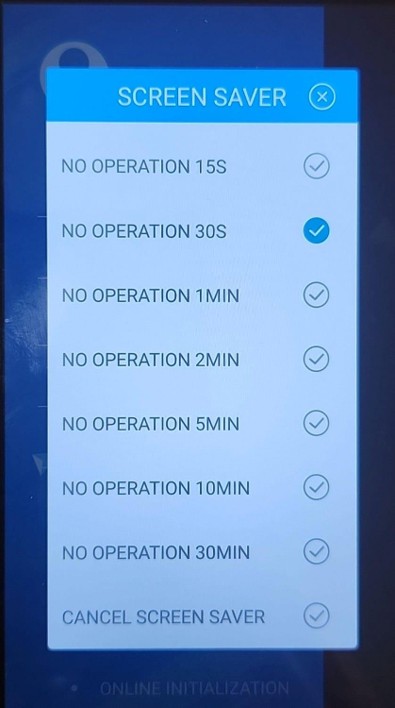
OTHER > SCREEN SAVER
Select your preferred time before screen is out. Kindly note that keeping your terminal light will use up battery faster.
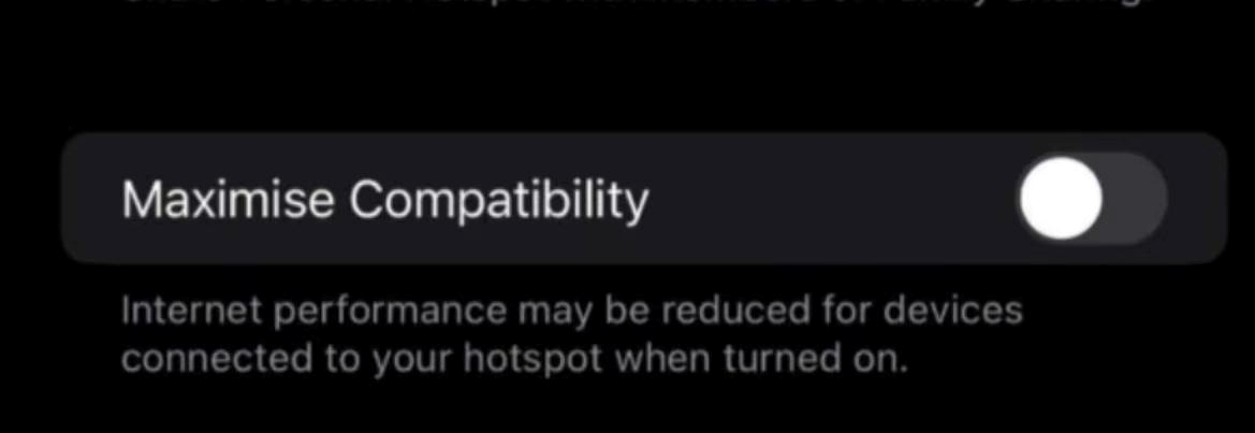
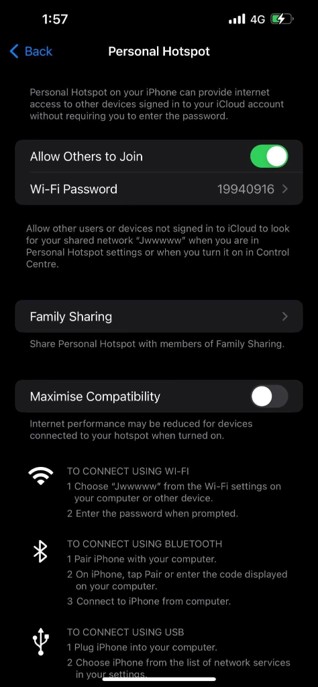
Terminal Cannot Detect Hotspot from iPhone
Need to turn ON the below settings on iPhone hotspot settings
Hardware Maintenance
I am unable to switch on the terminal
Check that the battery
is placed correctly in the terminal
can be charged – you can see charging status at the top right corner of the terminal
is not bloated. If the battery appears bloated, please contact us to request for a replacement
Receipt
How can I change the header on my receipt?
You will need to sign a change request form, signed by authorised person. Please contact us cs@allinpay.sg.
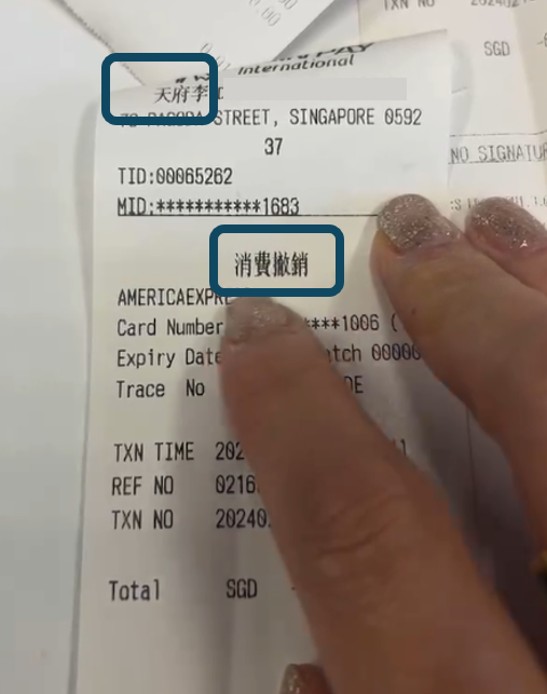
My receipt header is showing Chinese characters.
The header will show Chinese characters if the business name also contains Chinese characters. To replace to full English, the chinese characters in the business name must be removed. This is configured in the backend and cannot be changed from the terminal.
I am unable to print transaction receipts / no receipt printed
Check there there is paper roll in the terminal
Ensure that the paper roll is placed correctly in the terminal, with the paper end facing upwards.
Check the status of the transaction – if payment was not successful, it will not be captured in the terminal. To check the latest transaction:
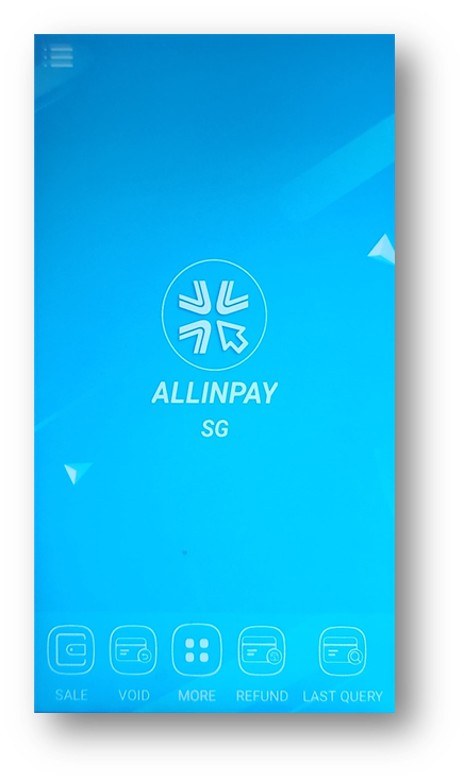
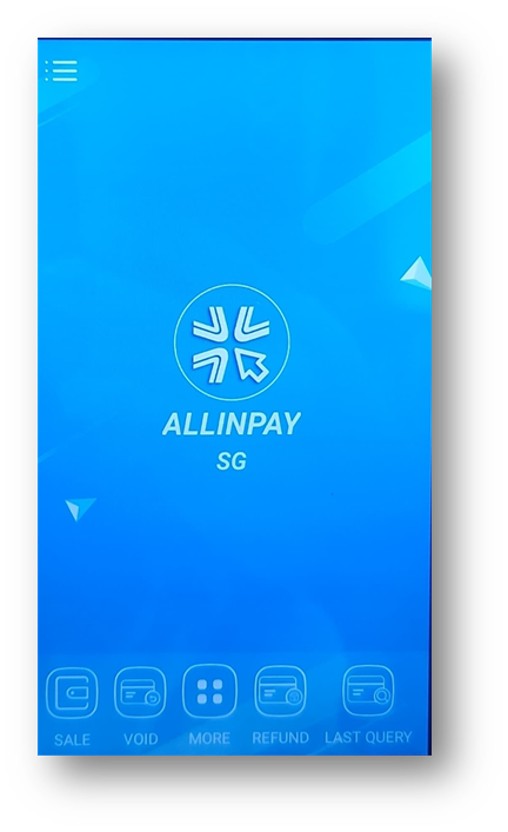
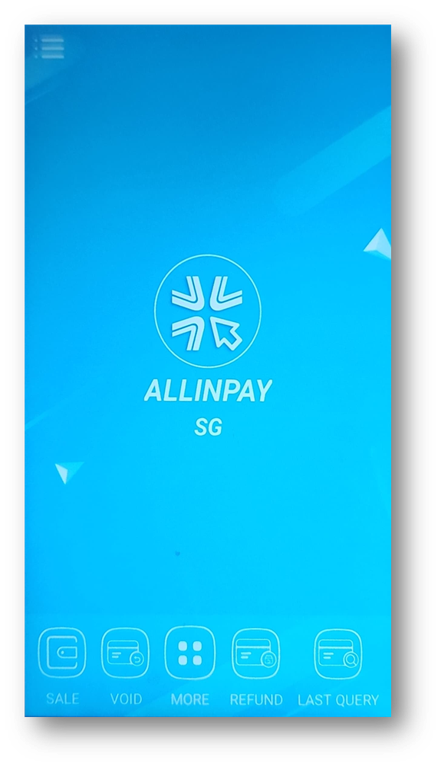
In the main page of Allinpay SG App, select Last Query at the bottom right, or
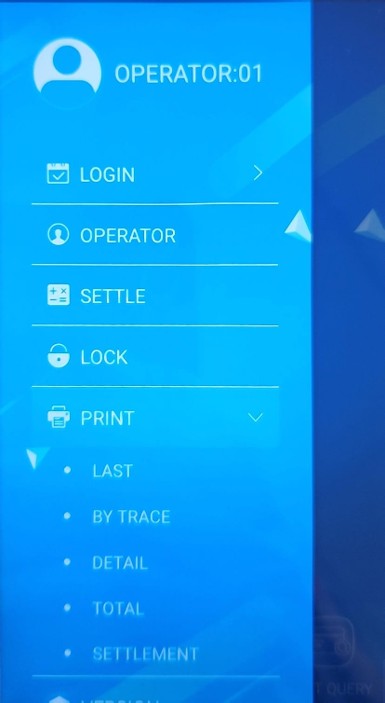
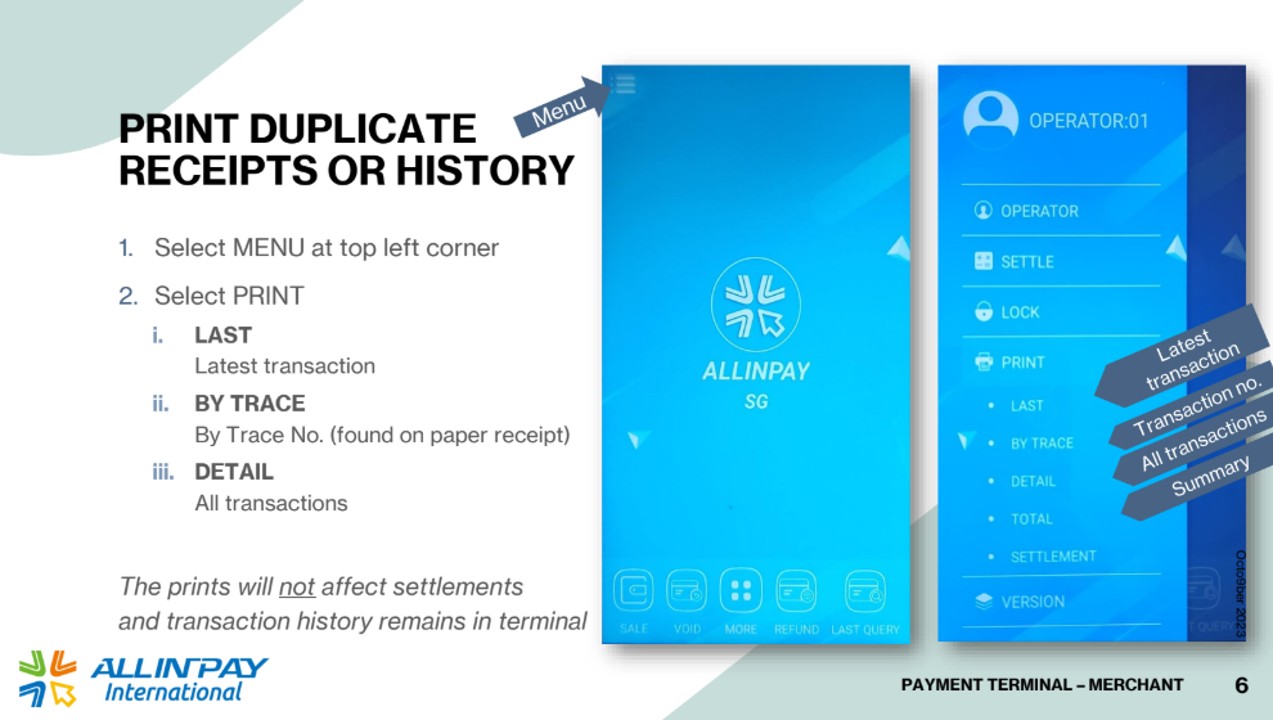
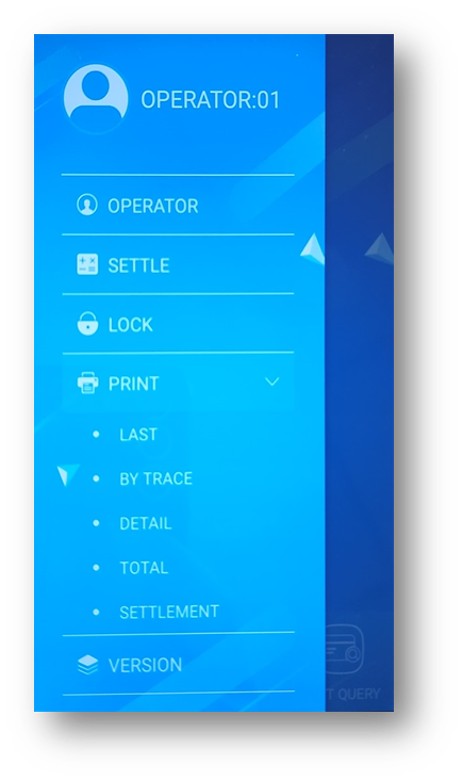
Select MENU at the top left, PRINT > LAST , to print the last transaction
The terminal is printing unrecognisable characters.
We may need to replace your terminal, please contact us cs@allinpay.sg.
Kindly provide your company name, merchant number and UEN for us to make arrangements to replace your terminal.
My receipt header is showing “AND” instead of symbols or special characters (such as “&”) in my business name.
We regret to inform you that this is a limitation in the current PayNow system. We will provide an update in due time.
How to turn off receipt printing?
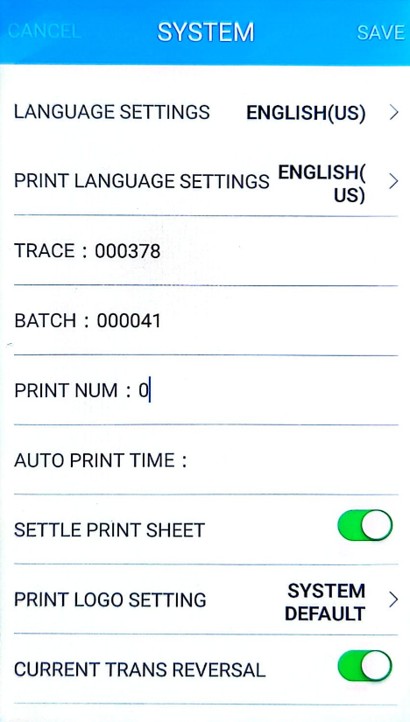
Login in as Admin > SYSTEM > PRINT NUM: 0
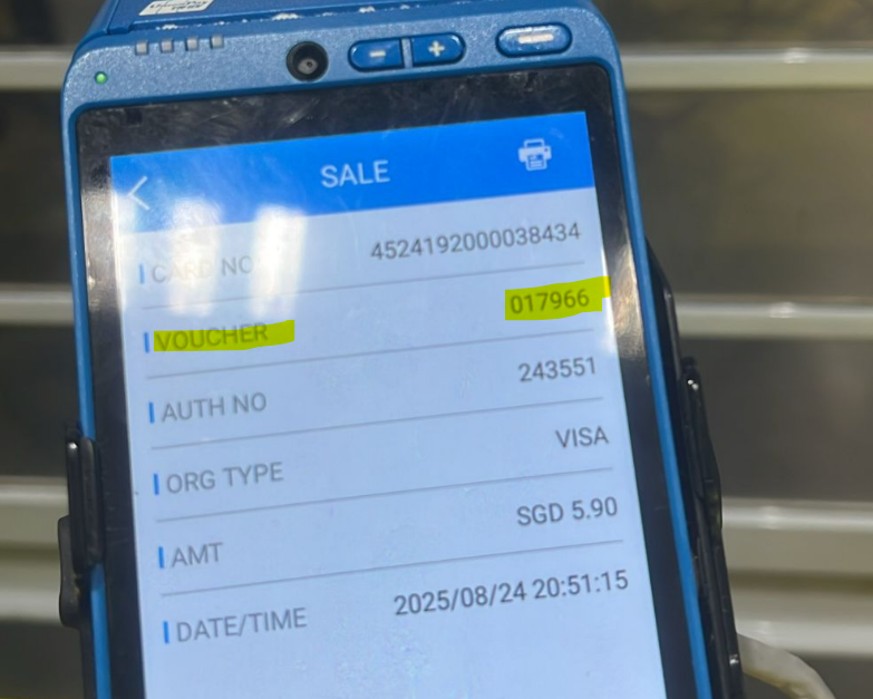
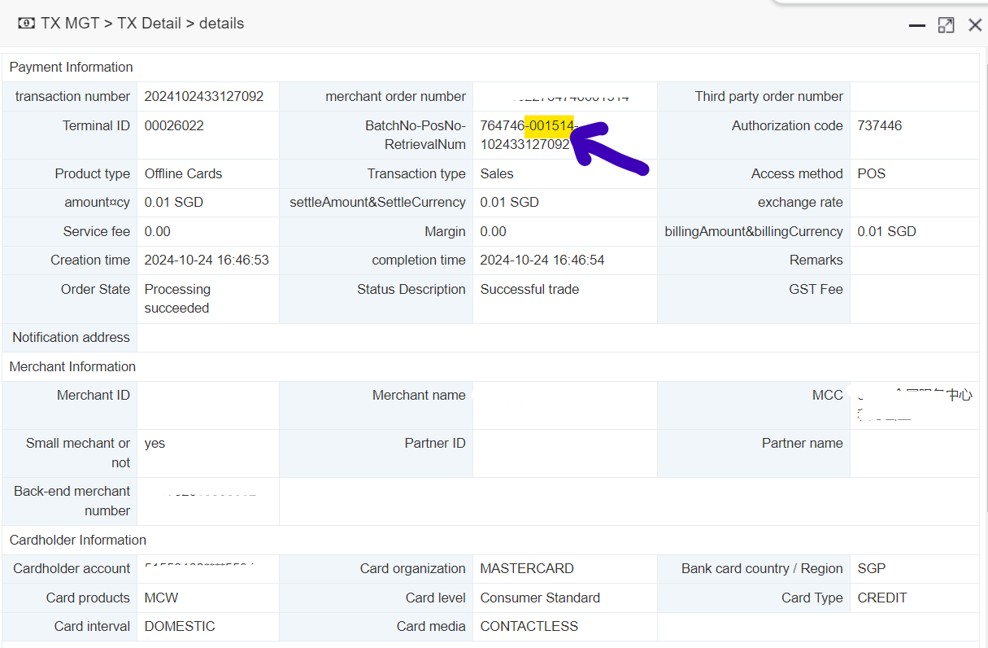
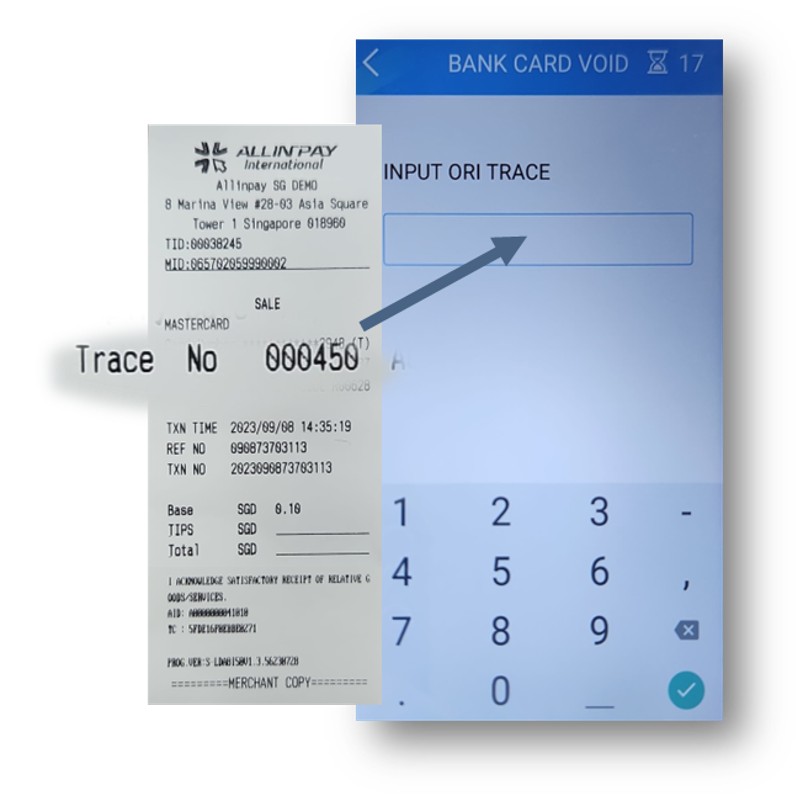
How to get TRACE NO to void transaction if there is no receipt?
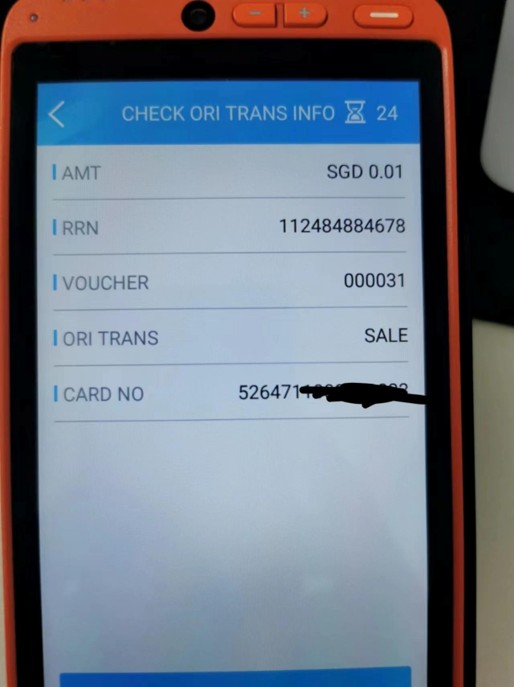
Terminal > search for earlier transactions to get VOUCHER No.
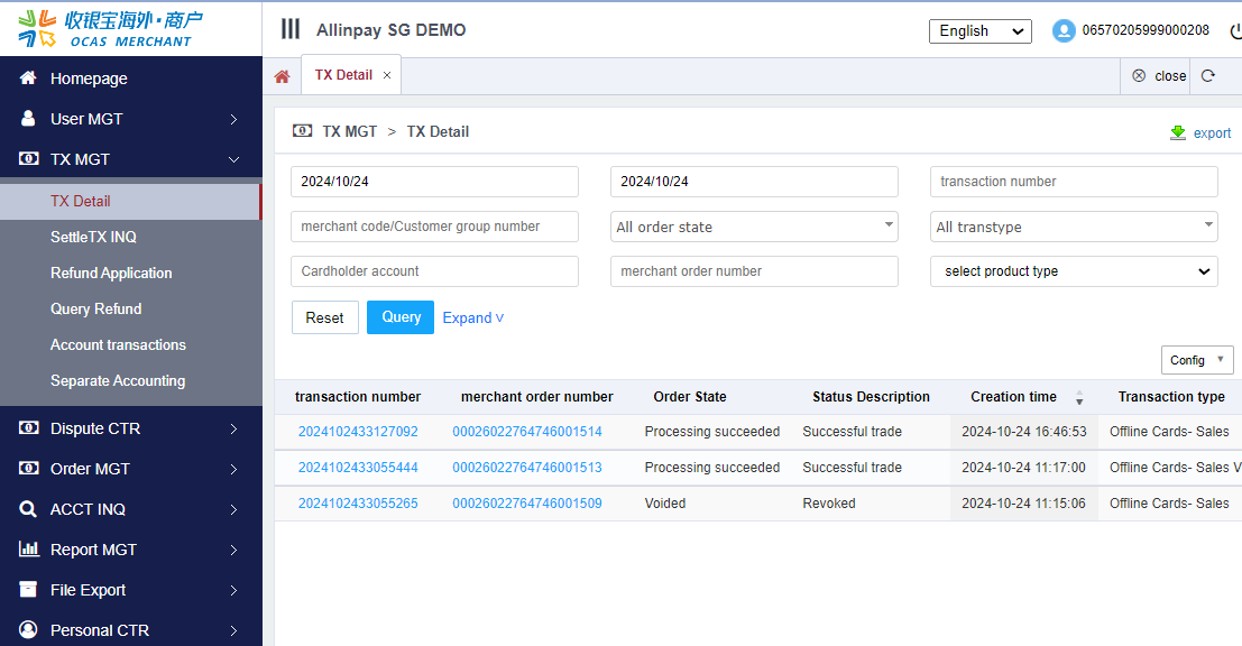
Or , Merchant needs to log into their portal to get transaction details.
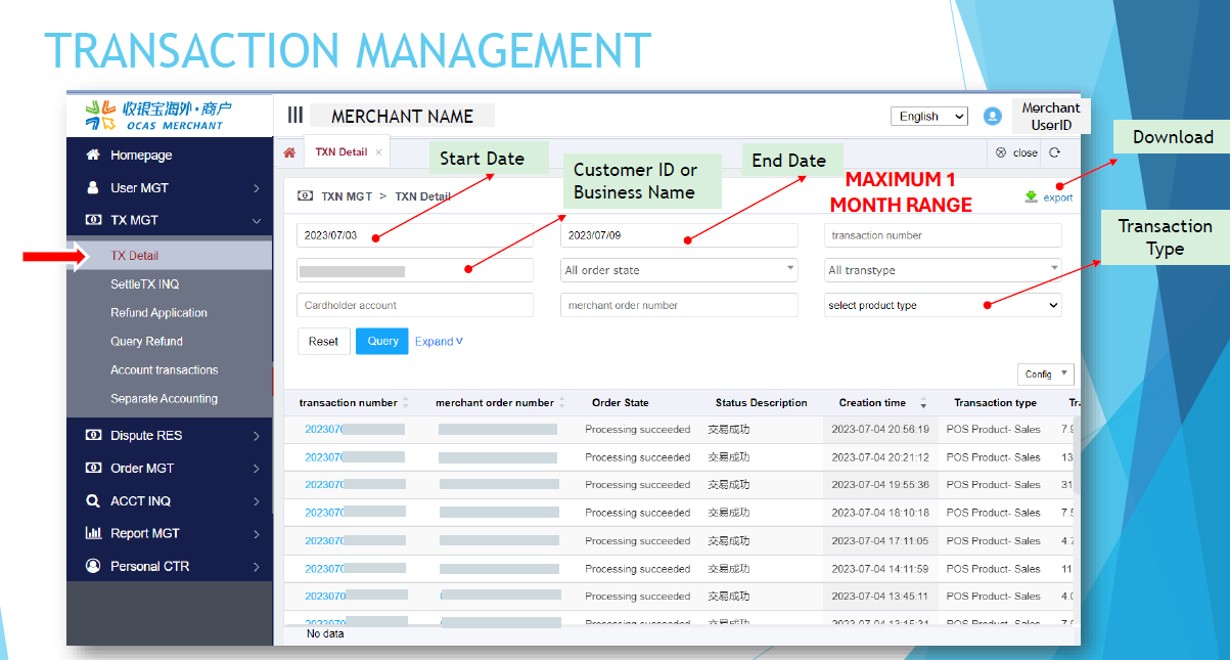
TX MGT > TX Detail Search for the transaction by amount or timing
Click on the transaction number
Look for the middle 6-digit number in BatchNo-PosNo-RetrievalNum
App
How to update the Allinpay SG App?
App updates are pushed automatically to the terminal and must be updated before you can proceed to use the terminal after the reboot. You may also download the update manually:
Go to App Store
Search for the app name “Allinpay SG” (Please type in exact upper and lower case)
Click on Update
Usage & Ownership
Can I take over the terminal from the previous owner or another business?
If you are taking over a business, with changes in ownership but no changes in other business information, you need to submit to us the latest ACRA and NRIC of new directors. After the changes are updated, you may proceed to continue the usage of the terminal. Please contact us at cs@allinpay.sg.
Terminals are registered to a business and should not be transferred to another business without an account with us. You should submit a new application and have your new account bound to the terminal. Please contact us at sales@allinpay.sg.
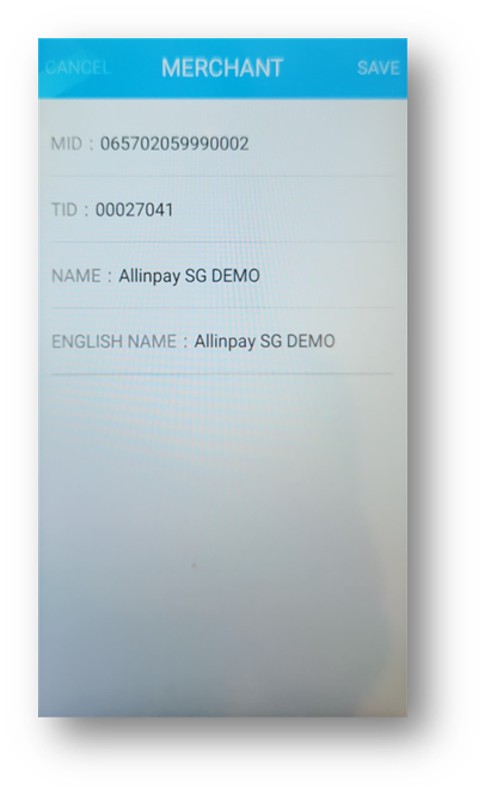
How can I check the MID or TID?
Administrator
Log in as Administrator
Select Merchant
Merchant
Select MENU at top left corner
Select PRINT
Select LAST (This will print the latest transaction, and you can see the MID on receipt)
Transactions
Union Pay Options
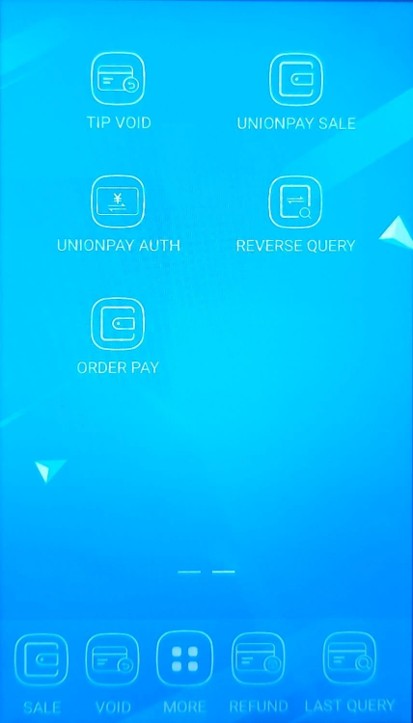
China issued Unionpay cards can be processed by VISA or Unionpay. Our terminal processes by VISA by default. If cardholder wants to have transaction processed by Unionpay, follow the steps below:
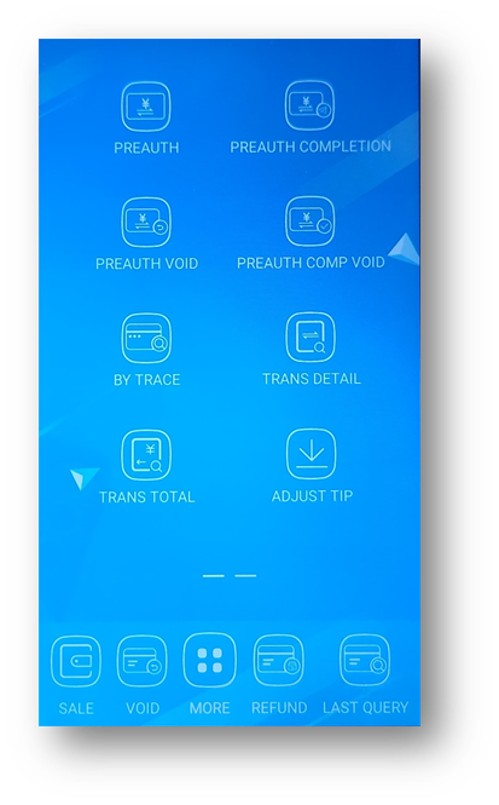
On the Home page, select MORE
Scroll right to next page and select UNIONPAY SALE
Process a transaction as per usual sale
How can I turn on the TIP function?
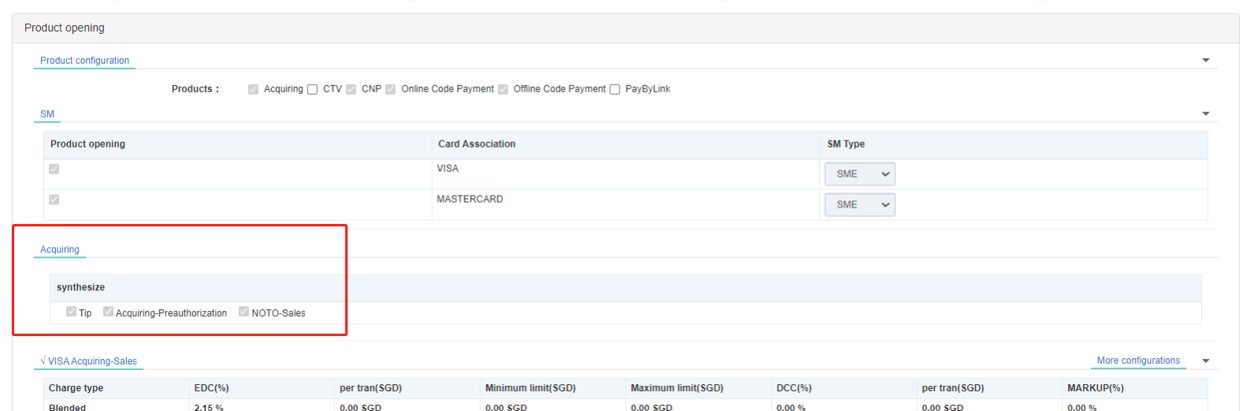
You must first inform Allinpay or your account manager that you require the tip function so your account can be configured to accept tips. New accounts, by default do not have tips functions turned on.
#1 ON OATS (by AIP)
The partner must have PRODUCT: TIP turned on
The MID must also have Product: TIP turned on
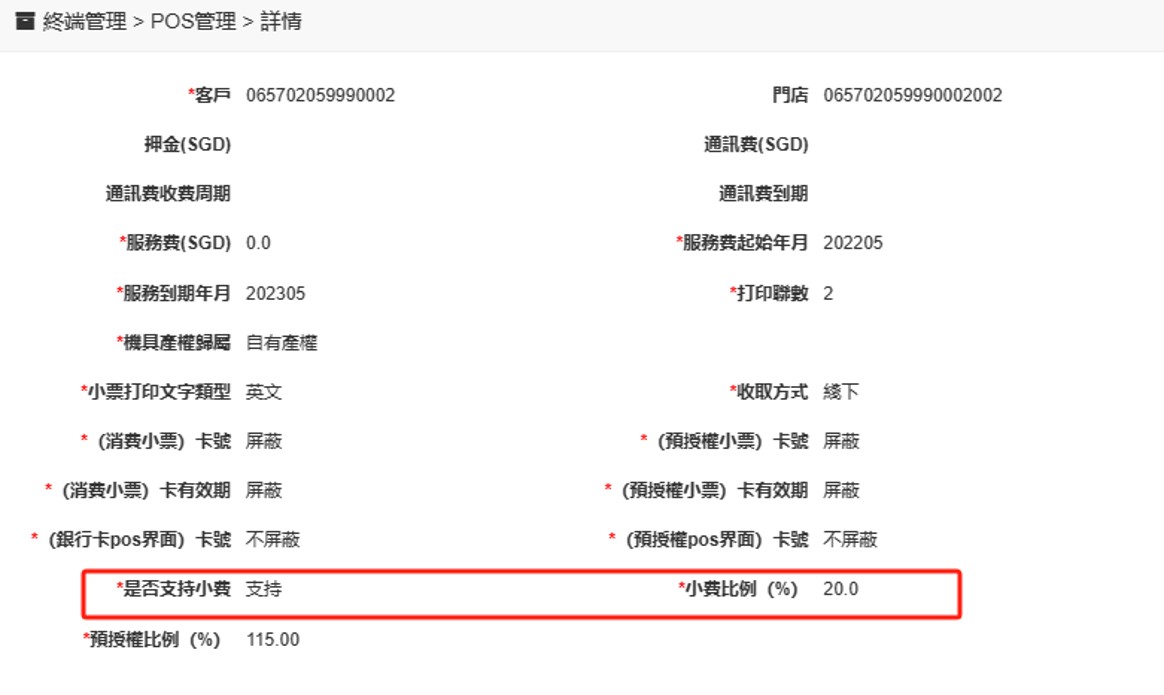
POS MGMT:
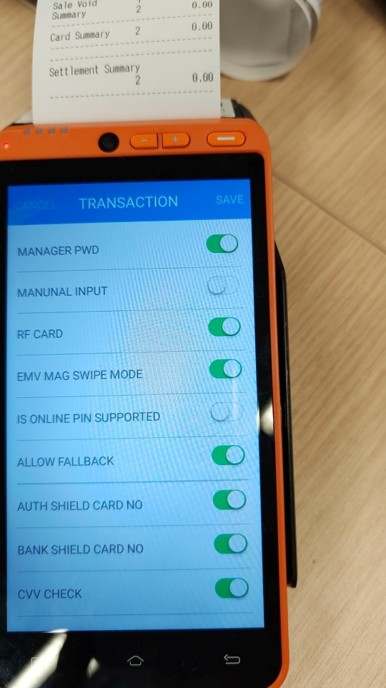
#2 On Terminal: Turn on Tip settings
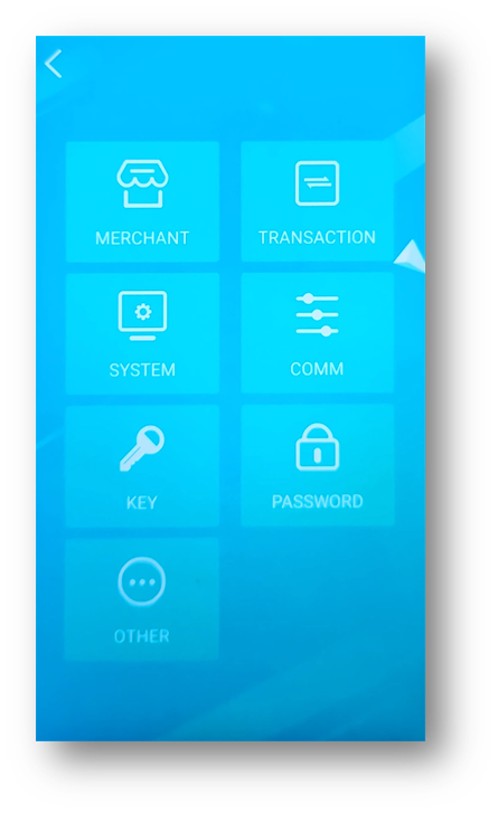
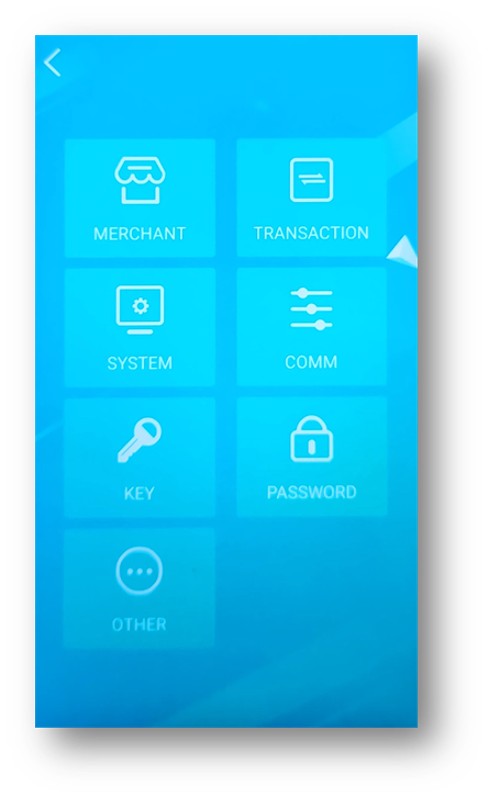
Login as Administrator
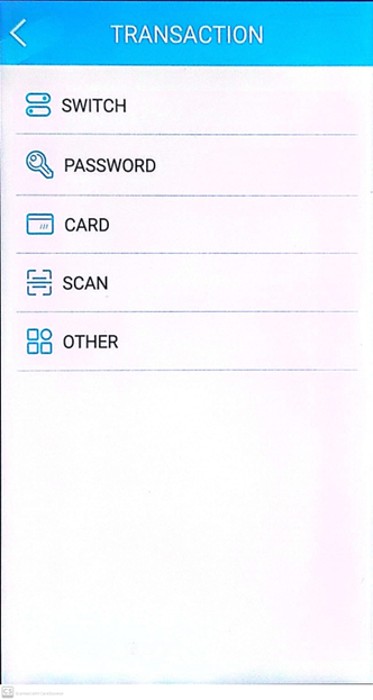
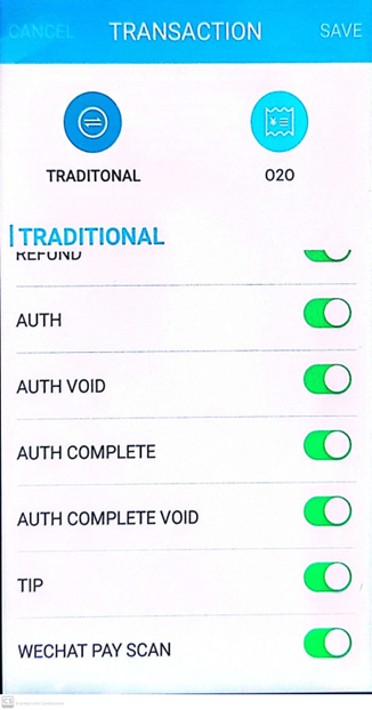
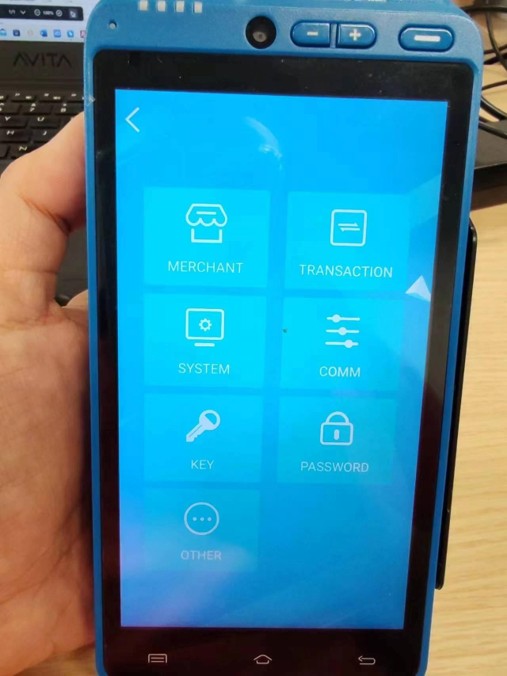
Select TRANSACTION
Select SWITCH
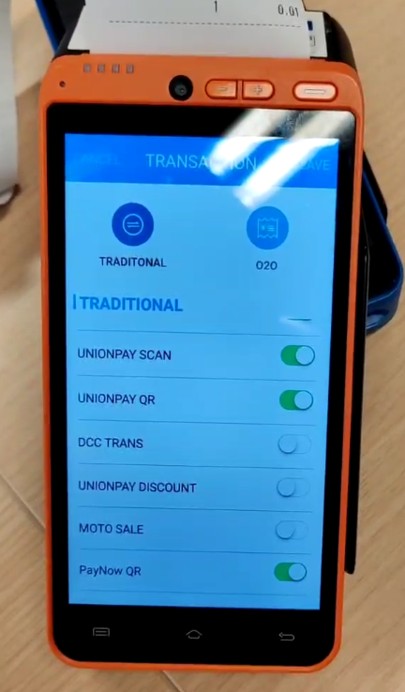
Scroll to TIP, turn ON
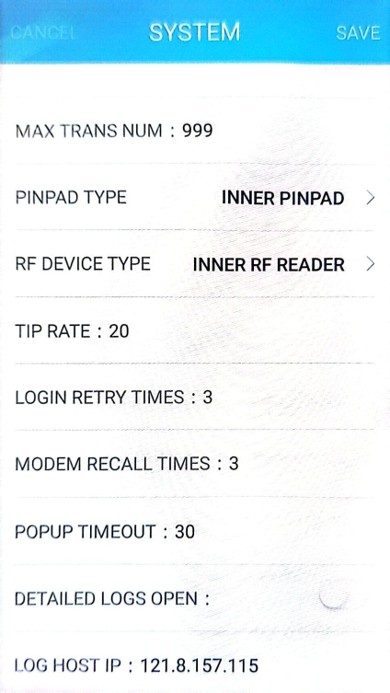
#3 On Terminal: Tip Limit – Limit by card schemes is set as 20% on base transaction amount (Note that if settings on terminal differs from OATS, the settings on terminal take effect over OATS settings)
Select SYSTEM
Look for TIP RATE: 20 (Limit is 20)
There are two types of tips. Only one type of tip is allowed on a transaction
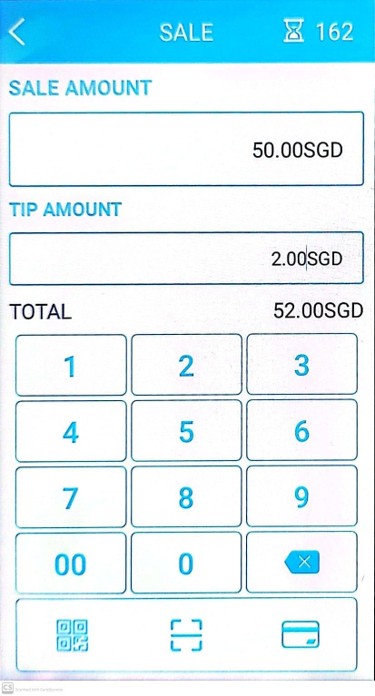
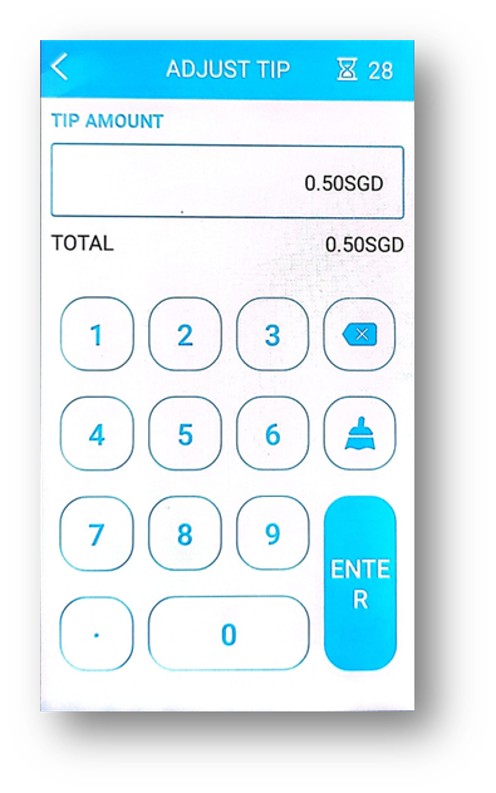
Sale + Tip Create SALE as usual (Tip amount is to be manually entered, and does not apply automatically the Tip rate configured in terminal)
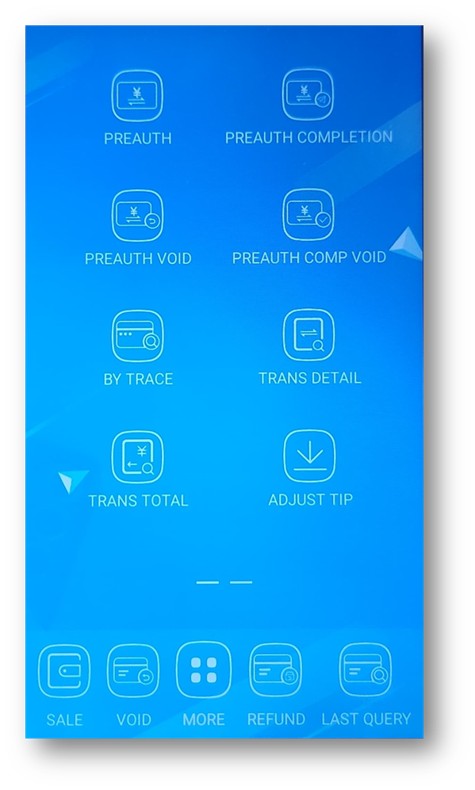
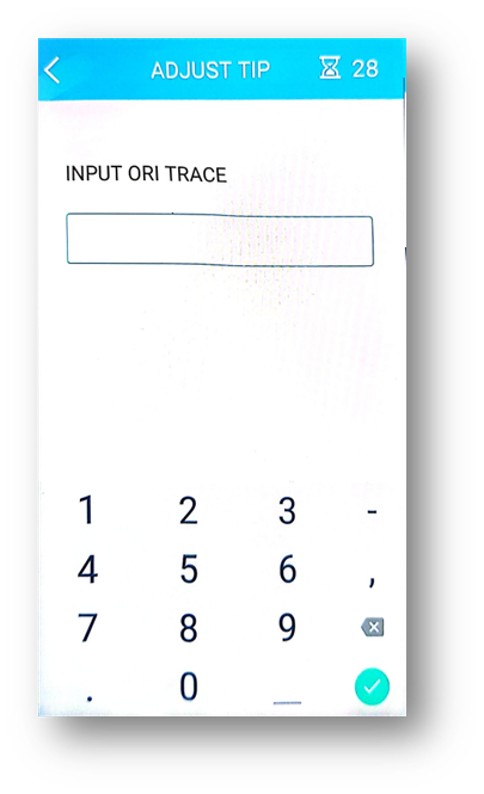
Adjust Tip
Select MORE
Select Adjust Tip
Enter TRACE NO (found on transaction receipt)
Enter Tip Amount
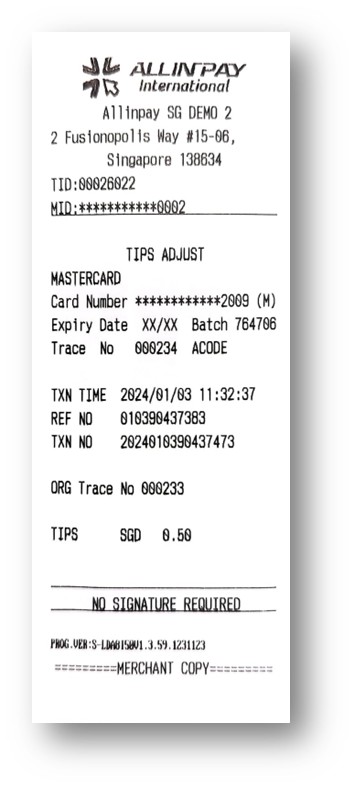
Receipt will be printed without additional tap or scan
Technical & Errors
How to send a log file from the terminal?
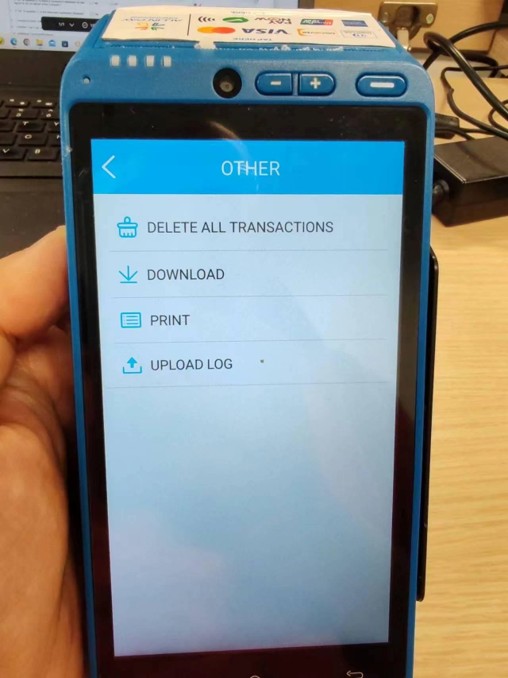
Select MENU at the top left corner
Select OTHER from the list
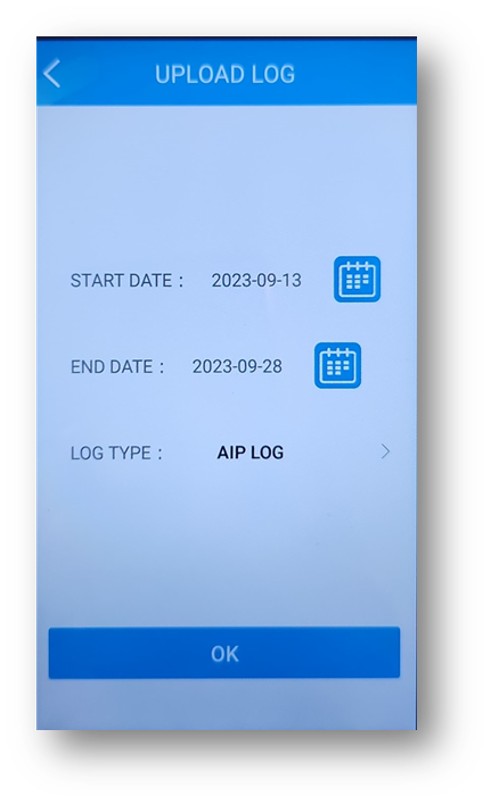
Select UPLOAD LOG
Enter the Date Range when the error occurred
The log file will be sent to our technical team for investigation. Please note that the terminal only stores log up to 15 days.
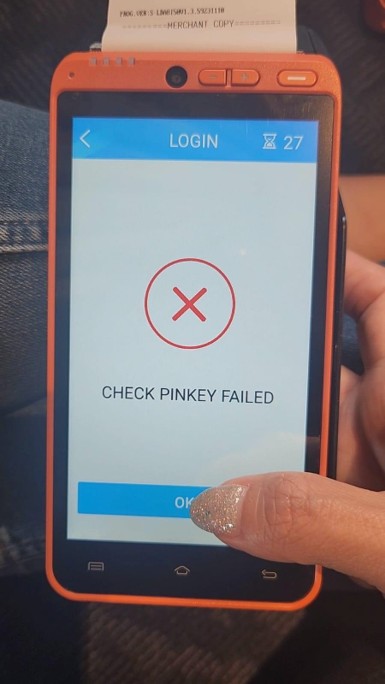
PayNow, Wechatpay, Alipay : Customer paid but no receipt is printed on terminal
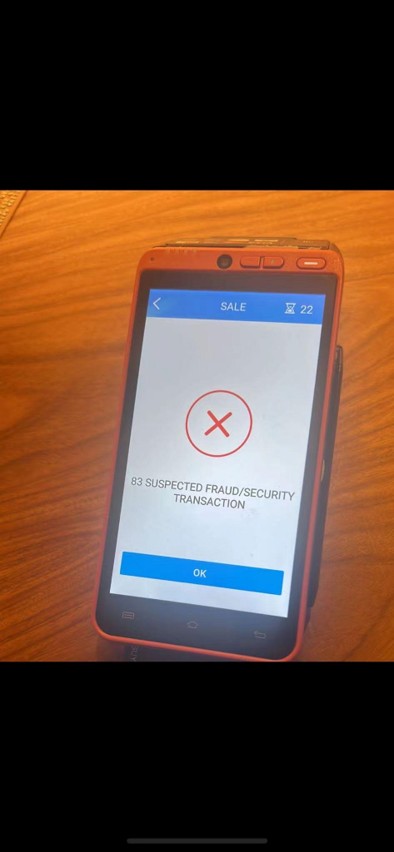
Credit Card Number Showing Up on Screen in Transaction History or when Void a Transaction
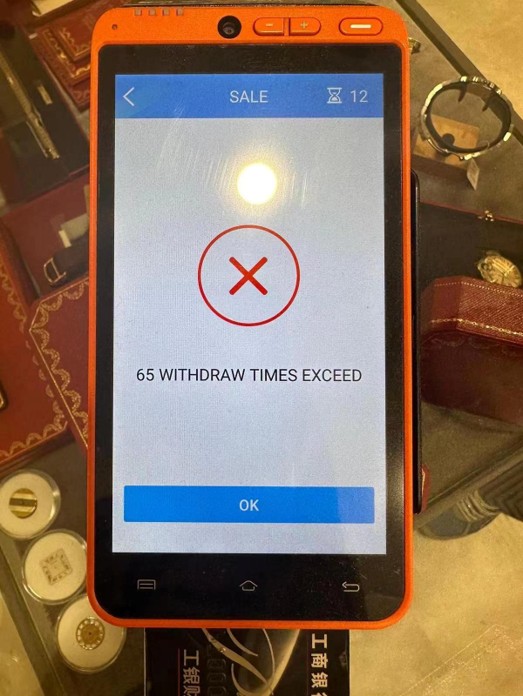
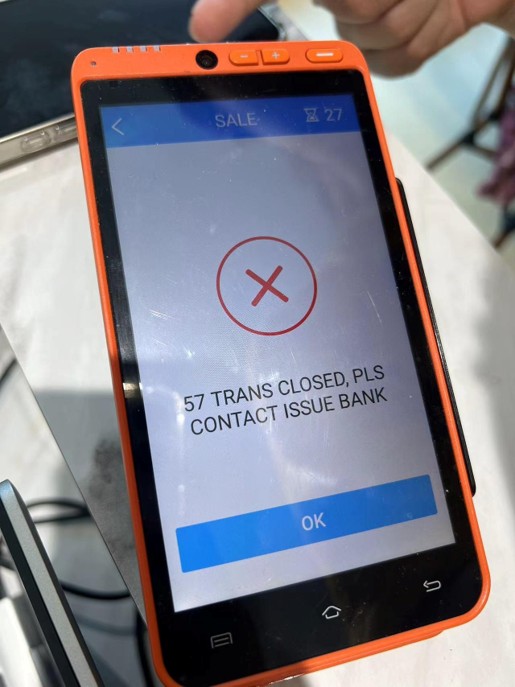
Other limits or restrictions set by card issuing bank
Please advise the card holder to make payment with another card.
Note that overseas spending or out of norm spending amounts may be restricted by issuing bank.
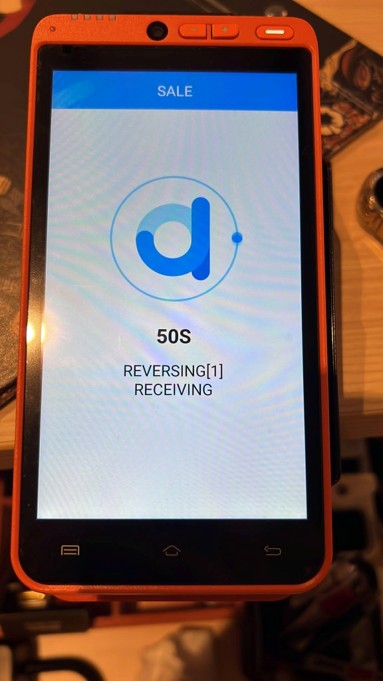
Error Message: REVERSING [1] RECEIVING / Stuck when processing transaction
This is due to:
Transaction cannot be sent from terminal to backend for processing
Resolution:
Perform a Settlement to clear the transaction from system This will only clear transaction history on the terminal, past transactions are still captured in the backend.
Top left select MENU
Select SETTLE
Select YES
Settlement receipt will be printed
User will be logged out in app (See video for Settlement steps)
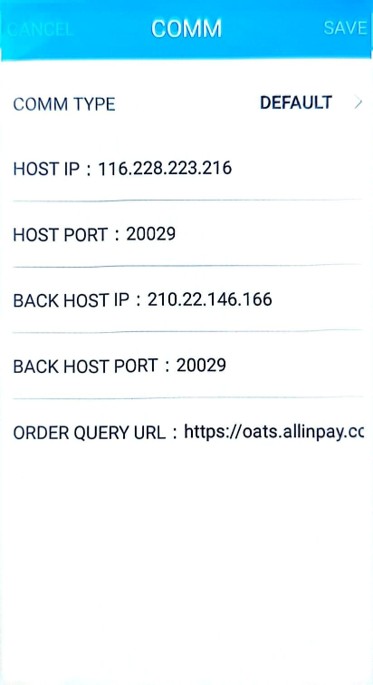
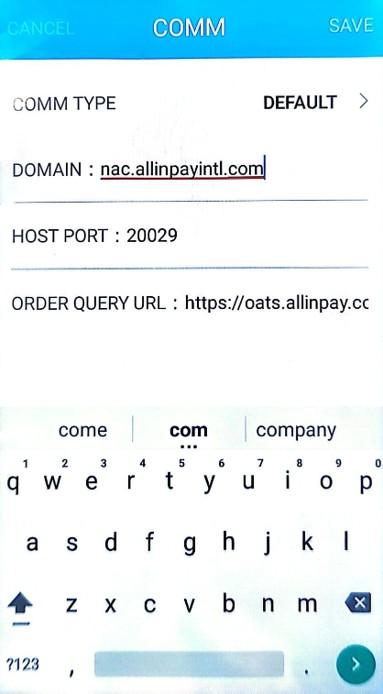
Change the network on terminal
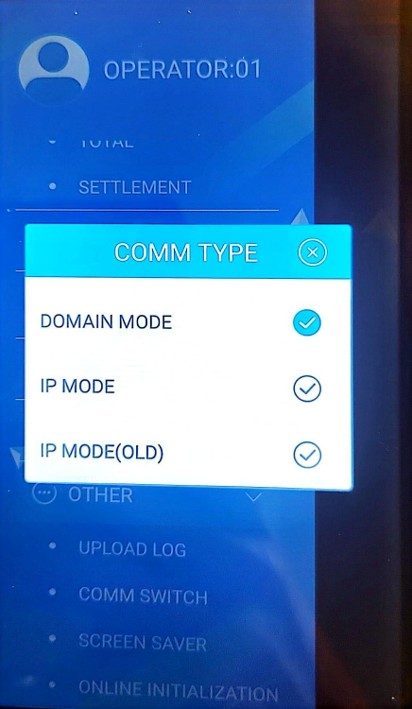
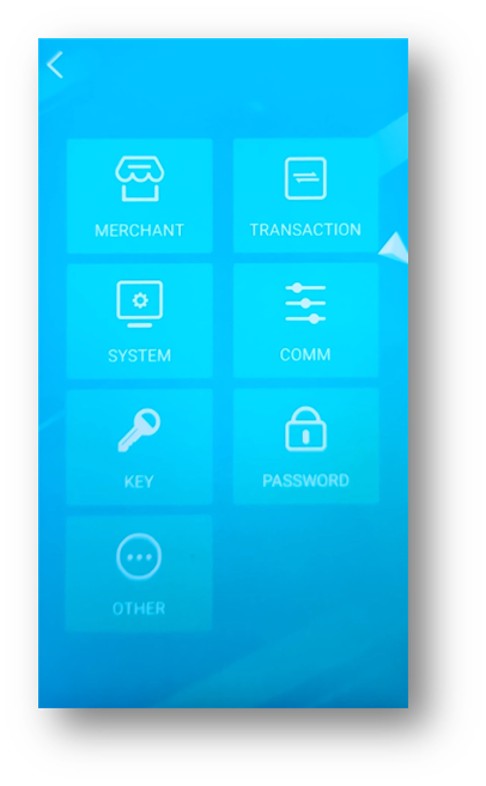
Log in as 99 Administrator Select COMM
Under Domain, change between:
nac.allinpayintl.com
nac.allinpay.com
Error Message: “Device Locked. Unable to get detailed information. Please contact provider”
Please try:
Shut down the terminal and let the terminal reboot. If the problem persists,
In the App, login to Administrator role, select System, select Pinpad Type, choose EXTERNAL PINPAD then choose INTERNAL PINPAD again.
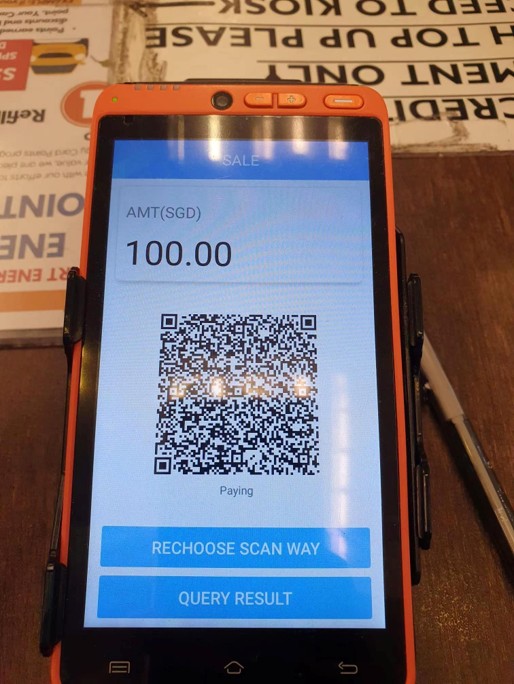
PayNow transaction slow
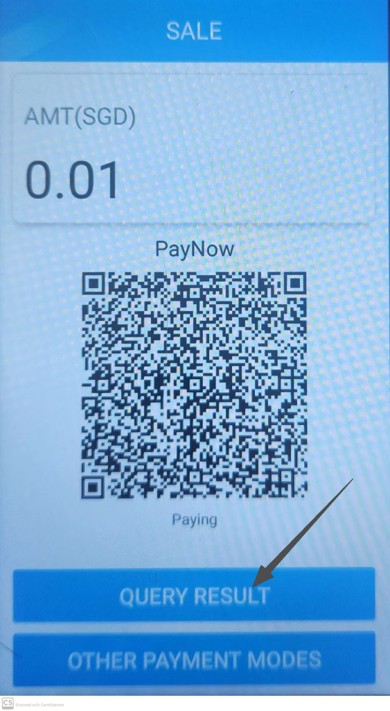
Note that PayNow transactions may take up to 5 minutes before the QR expires. The lag time may be caused by our processing bank’s system feeding downstream. Please do not select Rechoose Scan Way w hile waiting for the system to respond as it will trigger another PayNow request in the system. Terminal will automatically print the receipt once it receives PayNow success.
App crashes/ restarts when processing transaction
This may be due to infrequent settlements, accumulating too many transactions logged in the terminal. Note that the terminal captures by number of transactions, not transacted amount processed.
This may be due to too many accumulated transactions in the terminal and the terminal is unable to print all the transactions.
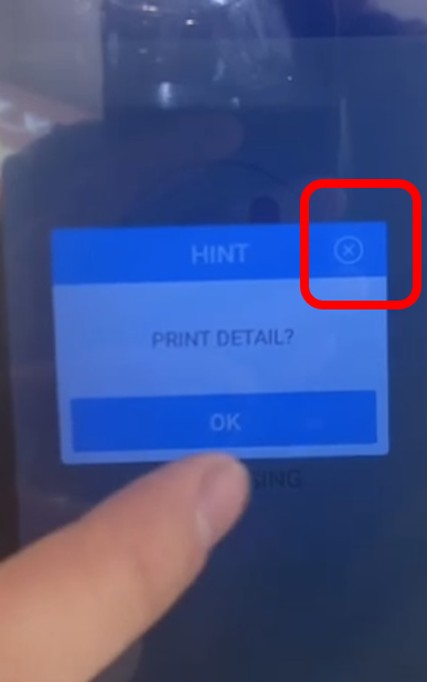
Merchant should perform terminal settlement to clear the transaction history in the terminal as per normal (see video for steps to perform settlement) but at PRINT DETAIL?, select cross at the top right corner.
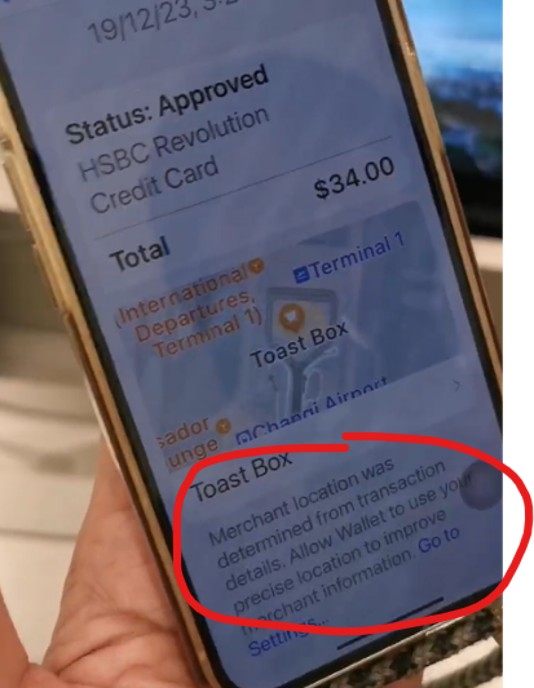
Transaction on ApplePay interface showing incorrect Merchant Name in transaction history
Merchant name in ApplePay may be generated by GPS location, depending on the device user’s set up.
Most importantly, merchant should check that the transaction receipt from the terminal is correct. The customer can also check his/her bank’s transaction is showing the correct merchant name.
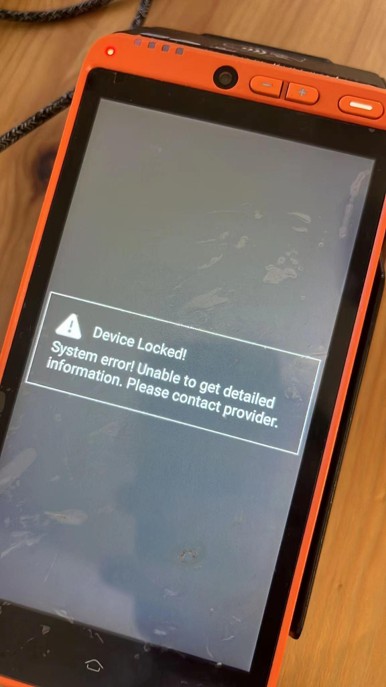
Error Message: Device Locked! System Error! Unable to get detailed information. Please contact provider
This is due to: Terminal hardware lock triggered by abnormal operation or attempted reconfiguration. It could also be due to impact from drops or hard knocks.
Resolution: The hardware needs to be sent back to the manufacturer. Please proceed to replace another terminal for merchants.
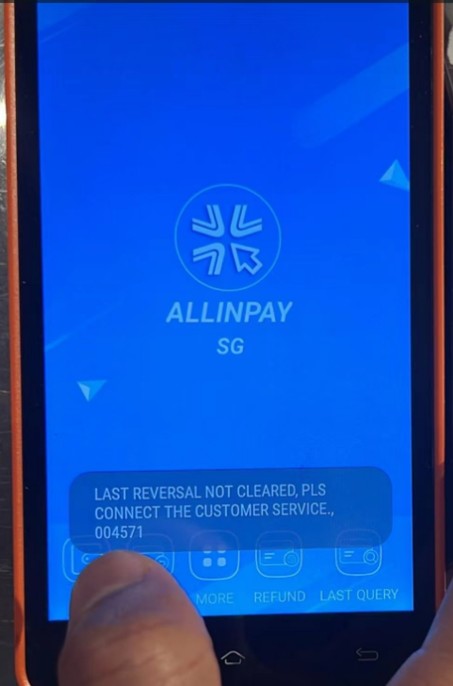
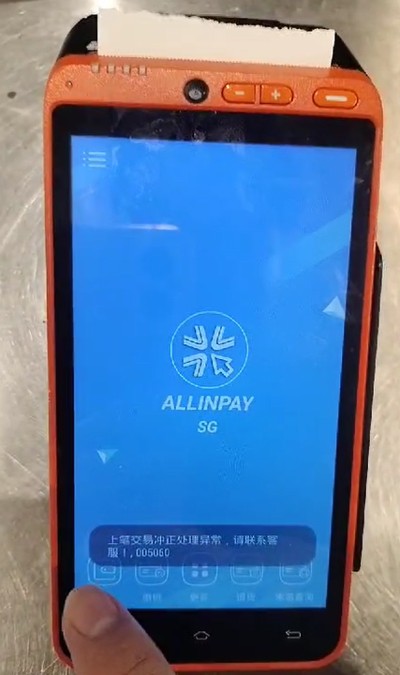
Error Msg : Last Reversal Not Cleared, Pls Connect the Customer Service 004571
This is due to: Infrequent settlement
Resolution: Perform a settlement in the terminal. See video
Error msg : last reversal not cleared, pls connect the customer service 003983
This is due to network issue. Check on-site network. If using Sim card, take out sim card, clean and place it back to terminal. Reboot terminal.
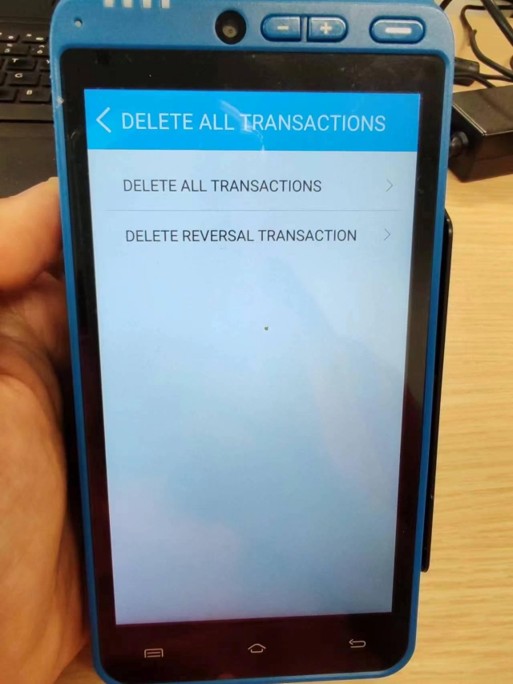
If still cannot resolve, login to user: 99 and go to other follow b selecting delete all transactions.
Error after reversing, cannot create new sale / transaction
Cannot create new sale after reversal failed.
Terminal cannot detect my hotspot or network
If the hotspot is from an iOS device, go to the hotspot settings on the iOS device, enable Maximise Capacity
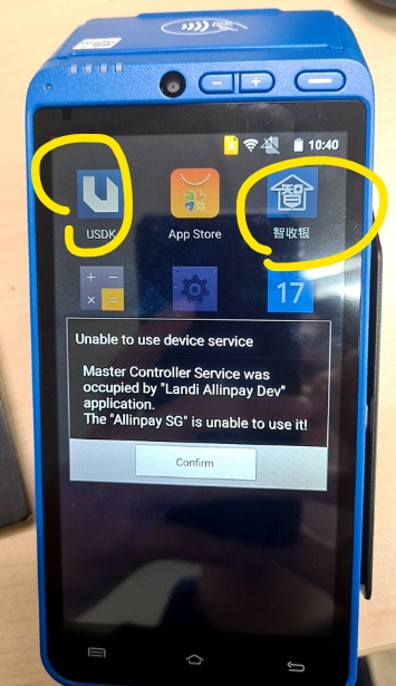
Error Message : Unable to use device service service
“Master Controller Service was occupied by “Landi Allinpay Dev” application. The “Allinpay SG” is unable to use it!
Resolution: Uninstall the apps “USDK” and “智收银“ See video on how to uninstall
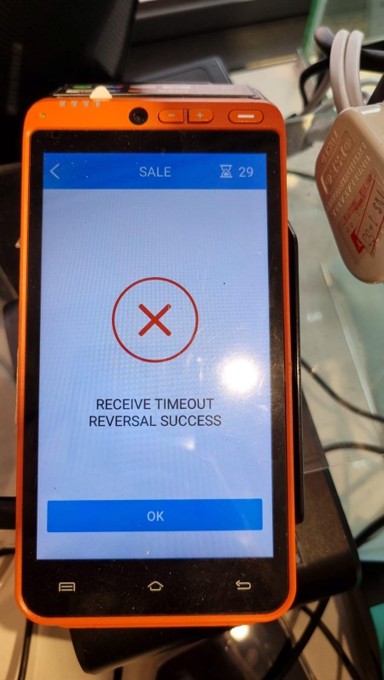
Error Message : Receive Timeout Reversal Success
Cause: This indicates that the message receives a timeout and the terminal automatically initiates a reversal.
Resolution: Check if the timeout settings is too short for this terminal. Recommended at 65s
ADMIN login > COMM > OTHER > TIMEOUT: 65 (see video)
Error Msg: Exist Unprinted Record
Last receipt was printed halfway. Need to reprint the last receipt before settlement is allowed.
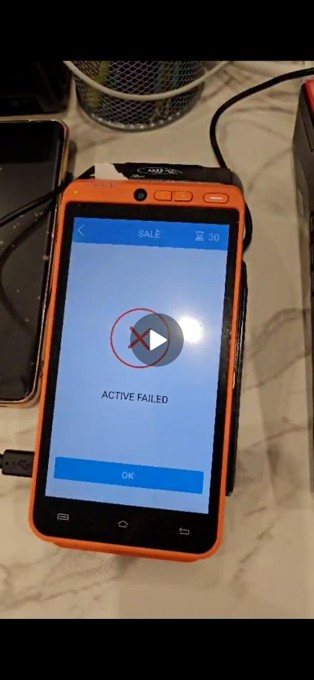
Error Message : ACTIVE FAIL (1FF)
Cause: Nearby NFC device detected but not close enough for transaction to go through
Resolution: Reattempt another transaction or reboot terminal
Settlement
Can I choose manual settlement? My operating hours are beyond 23:59h
Yes, you can opt for manual settlement. However note that our payout will be effected on T+2 from the settlement date. For example, your operating hours are 1500 – 0300 (next day), We will payout T+2 from your business closing hours.
Manual Settlement: Merchants will trigger the settlement process manually from their terminal at the end of their defined business hours. Funds will be disbursed to the merchant only from trigger
Auto-Settlement Trigger: If a merchant fails to initiate a settlement after 48 hours, the system will automatically trigger a forced settlement in backend (no settlement receipt will be printed automatically from terminal)
Settlement Processing Timeframe: The processing timeline for settlement begins from the date and time the merchant triggers the settlement on the terminal.
Implications on Reporting: Daily transaction statements will reflect transactions based on their respective transaction dates, regardless of when settlement is performed. Settlement invoices, however, are generated based on the actual settlement activity. Therefore, if a merchant consolidates multiple days of transactions into a single settlement, they will receive separate transaction statements for each day, but only one consolidated settlement invoice corresponding to that settlement.
Will I still get payment if I forget to perform settlement in the terminal?
Yes, our back-end system performs automatic settlement at 23:59 each day. The settlement on the terminal acts to clear the transaction history in terminal and prevents slowing down in terminal. You should perform settlement in your terminal on daily basis.
Refund
How do I raise a refund?
For PayNow and Wechat Pay, we do not process refunds as the payment is immediate. Please arrange a refund to your customer directly.
For credit card transactions:
After cut off (after transaction day) – You will need to fill up a Refund form, signed by the authorised person and send to us for processing. The refund will be made out to the credit card holder directly in 2-3 working days. The refund will be made from your settlement.
Same day refund (before cut off at 2359) –
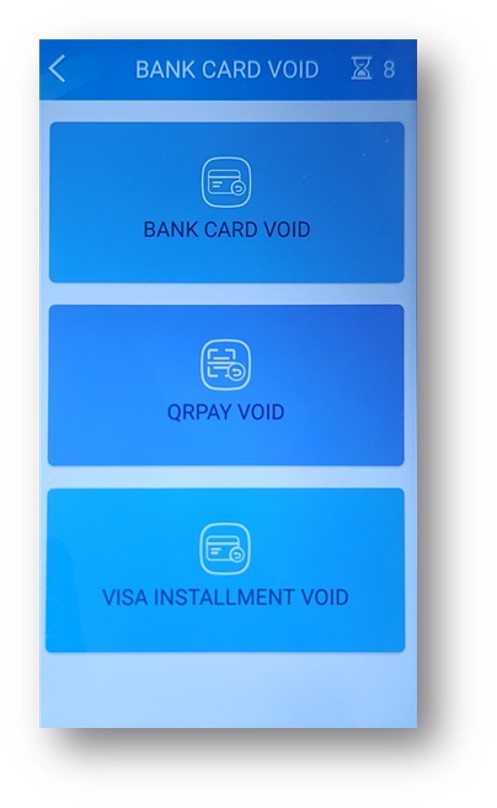
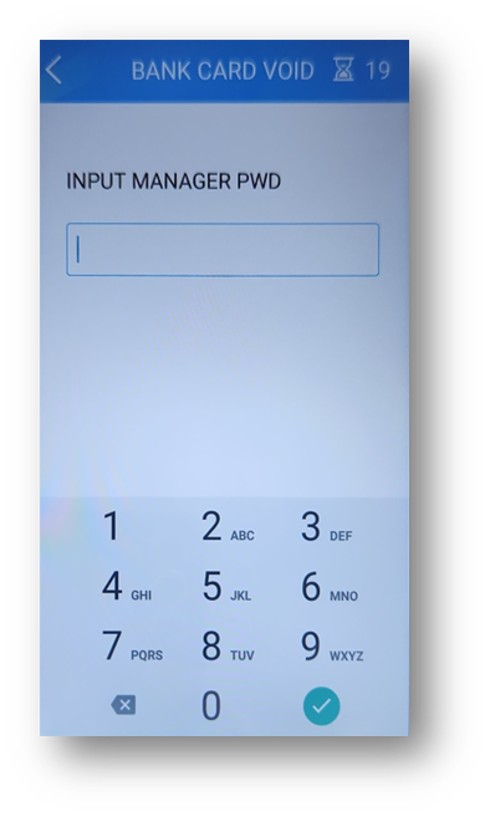
Click on VOID at the bottom
Select CARD
Log in with Manager password
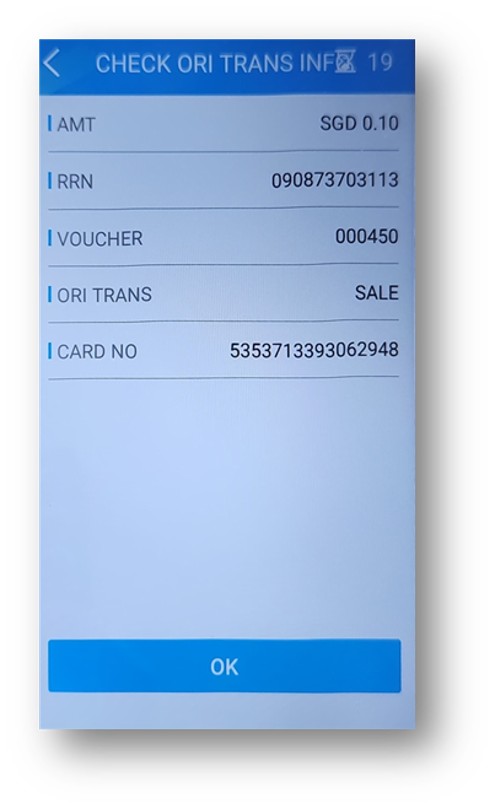
Enter INPUT ORI TRACE as the Trace No (on paper receipt)